The commands below allow you to interact with the CMS using the HubSpot CLI, providing the ability to upload and manage files in the Developer File System, manage your themes, and more.
As of version 8.0.0 of the CLI, all CMS-related commands have been reorganized under the hs cms namespace. Old commands (e.g., hs upload, hs fetch, etc) are no longer supported and you must use the new hs cms equivalent commands instead (e.g., hs cms upload, hs cms fetch, etc).Learn more about these changes on the HubSpot Developer Changelog.
Create a CMS app
Create a new CMS app with a boilerplate directory structure to support specific features.
hs cms app create <type> <name> <dest> [flags]
Arguments
| Argument | Description |
|---|
type | The type of CMS app you want to start with. Options include: |
name | Name of your CMS app. |
dest | Destination directory for the app. |
Flags
| Flag | Description |
|---|
--config | Path to a config file. |
CMS serverless functions
The commands below allow you to serverless functions in a CMS app.
Create a CMS serverless function
Create a new serverless function in a CMS project.
hs cms function create <name> <dest>
Arguments
| Argument | Description |
|---|
name | The name of your serverless function. |
dest | The destination directory of the serverless function. |
Flags
| Flag | Description |
|---|
--config | Path to a config file. |
--functions-folder | Directory to create function in. |
--filename | Filename for the function |
--endpoint-method | HTTP method for the function endpoint. Options include: DELETE, GET, PATCH, POST, or PUT (Defaults to GET). |
--endpoint-path | API endpoint path for the function. |
List CMS serverless functions
List currently deployed serverless functions in a CMS project.
View CMS serverless function logs
Review logging for a specific CMS serverless function.
hs cms function logs <endpoint>
Arguments
| Argument | Description |
|---|
endpoint | The name of the endpoint to display logs for. |
Flags
| Flag | Description |
|---|
--account | HubSpot account ID or name from config. |
--config | Path to a config file. |
--use-env | Use environment variable config. |
--latest | Retrieve most recent log entry only. |
--compact | Output compact logs. |
--follow | Tail log output. |
--limit | Limit the number of log entries to. |
Interacting with the developer file system
Using the CLI, you can interact with the developer file system, which is the file system in the Design Manager. These commands enable you to create new assets locally, such as modules and themes, upload them to the account, list files in the HubSpot account, or download existing files to your local environment.
List files
List files stored in the developer file system by path or from the root. Works similar to using standard ls to view your current directory on your local machine.
hs cms ls [path]
hs cms list [path]
Arguments
| Argument | Description |
|---|
path | Path to the remote developer file system directory you would like to list files for. If omitted, defaults to the account root. |
Fetch files
Fetch a file, or a directory and its child folders and files, by path. Copies the files from your HubSpot account into your local environment.
By default, fetching will not overwrite existing local files. To overwrite local files, include the --overwrite flag.
hs cms fetch --account=<name> <src> [dest]
Arguments
| Argument | Description |
|---|
src | Path in HubSpot Design Tools |
dest | Path to the local directory you would like the files to be placed, relative to your current working directory. If omitted, this argument will default to your current working directory. |
Flags
| Options | Description |
|---|
--account | Specify an accountId or name to fetch from. Supports an alias of --portal for backward compatibility with older versions of the CLI. |
--overwrite | Overwrite existing files with fetched files. |
--mode | Specify if fetching a draft or published version of a file from HubSpot. Click here for more info |
Upload files
Upload a new local asset to your HubSpot account. Changes uploaded through this command will be live immediately.
hs cms upload --account=<name> <src> <dest>
Arguments
| Argument | Description |
|---|
src | Path to the local file, relative to your current working directory. |
dest | Path in HubSpot Design Tools, can be a net new path. |
Flags
| Options | Description |
|---|
--account | Specify a accountId or name to fetch from. Supports an alias of --portal for backward compatibility with older versions of the CLI. |
--mode | Specify if uploaded files are published in HubSpot. See “modes” for more info. |
--clean | An optional flag that will delete the destination directory and its contents before uploading. |
Subcommands
| Subcommands | Description |
|---|
filemanager | Uploads the specified src directory to the File Manager, rather than to the developer file system in the Design Manager.Note: Uploaded files will be set to public, making them viewable by anyone with the URL. See our help documentation for more details on file visibility settings. |
Set a watch for automatic upload
Watch your local directory and automatically upload changes to your HubSpot account on save. Any changes made when saving will be live immediately.
Keep the following in mind when using watch:
- Deleting watched files locally will not automatically delete them from HubSpot. To delete files, use
--remove.
- Renaming a folder locally will upload a new folder to HubSpot with the new name. The existing folder in HubSpot will not be deleted automatically. To delete the folder, use
--remove.
hs cms watch --account=<name> <src> <dest>
Arguments
| Argument | Description |
|---|
src | Path to the local directory your files are in, relative to your current working directory. |
dest | Path in HubSpot Design Tools, can be a net new path. |
Flags
| Flag | Description |
|---|
--account | Specify a accountId or name to fetch from. Supports an alias of --portal for backward compatibility with older versions of the CLI. |
--mode | Specify if uploaded files are published or saved as drafts in HubSpot. Learn more about using modes. |
--initial-upload | Upload the directory before watching for updates. Supports an alias of -i. |
--remove | Will cause watch to delete files in your HubSpot account that are not found locally. |
--notify= | log to specified file when a watch task is triggered and after workers have gone idle. |
Move files
Moves files within the developer file system from one directory to another. Does not affect files stored locally.
hs cms mv --account=<name> <src> <dest>
Arguments
| Argument | Description |
|---|
src | Path to the remote developer file system directory your files are in. |
dest | Path to move assets to within the developer file system. |
Flags
| Flag | Description |
|---|
--account | Specify a accountId or name to move files within. Supports an alias of --portal for backward compatibility with older versions of the CLI. |
Delete files
Deletes files, or folders and their files, from your HubSpot account. This does not delete the files and folders stored locally.
hs cms delete --account=<name> <path>
Arguments
| Argument | Description |
|---|
path | The path of the file or folder in HubSpot’s developer file system. |
Flags
| Flag | Description |
|---|
--account | Specify a accountId or name to remove a file from. Supports an alias of --portal for backward compatibility with older versions of the CLI. |
Ignore files
You can include a .hsignore file to specify files that should not be tracked when using the CLI. This file functions similar to how .gitignore files work. Files matching the patterns specified in the .hsignore file will not be uploaded to HubSpot when using the upload or watch commands.
By default there are some rules HubSpot automatically enforces. There is no way to override these defaults.The following are always ignored:
hubspot.config.yml/hubspot.config.yaml
node_modules - dependencies
.* - hidden files/folders
*.log - NPM error log
*.swp - Swap file for Vim state
Icon\\r - Mac OS custom Finder icon
__MACOSX - Mac resource fork
~ Linux Backup file
Thumbs.db - Windows image file cache
ehthumbs.db - Windows folder config file
Desktop.ini - Windows custom folder attribute information
@eaDir - Windows Synology diskstation “hidden” folder where the server stores thumbnails.
# ignore all files within a specific directory
/ignore/ignored
# ignore a specific file
/ignore/ignore.md
# ignore all .txt files
*.txt
# ignore all log files - useful if you commonly output serverless function logs as files.
*.log
Convert JavaScript fields to JSON
Save the output of a JavaScript fields file as fields.output.json in the same directory as the JavaScript fields file.
hs cms convert-fields [flags]
Flags
| Flag | Description |
|---|
--src | The location of the JavaScript fields file, or a directory. |
--fieldOptions=[options] | Accepts a space-separated list that will then be passed to every exported JavaScript fields function as an array before compile-time. For example, you can configure fields to have different labels depending on whether a --fieldOptions=qa flag is set. |
Lint a local directory
Validate the contents of a directory in your CMS project.
hs cms lint <path> [flags]
Arguments
| Argument | Description |
|---|
path | Local directory to lint. |
Flags
| Flag | Description |
|---|
--account | HubSpot account ID or name from config. |
--config | Path to a config file. |
Create a module
Create a new module in your CMS project.
hs cms module create <name> <dest> [flags]
Arguments
| Argument | Description |
|---|
name | Name of the new module. |
dest | Destination directory of the module. |
Flags
| Flag | Description |
|---|
--config | Path to a config file. |
--module-label | Label for the new module. |
--react-type | Whether to create a React module (defaults to false). |
--content-types | Content types where the module can be used. Available types are: ANY, LANDING_PAGE, SITE_PAGE, BLOG_POST, BLOG_LISTING, EMAIL, KNOWLEDGE_BASE, QUOTE_TEMPLATE, QUOTE, QUOTE_BLUEPRINT, CUSTOMER_PORTAL, WEB_INTERACTIVE, SUBSCRIPTION, MEMBERSHIP. |
--global | Whether to create a global module (defaults to false). |
Create a theme
Create a new theme in your CMS project.
hs cms theme create <dest>
Arguments
| Argument | Description |
|---|
dest | Destination directory of the theme. |
Flags
| Flag | Description |
|---|
--config | Path to a config file. |
Locally preview theme
When developing a theme, you can run hs cms theme preview in the theme’s root directory (src/theme/my-theme/) to render a live preview of your changes without uploading files to the account.
Once run, this command will run a watch process so that any saved changes are rendered in the preview.
Please note: to allow the local server to run on https, HubSpot must generate a self-signed SSL certificate and register it with your operating system. This will require entering your sudo password.
hs cms theme preview <src> <dest>
Arguments
| Argument | Description |
|---|
src | Path to the local file, relative to your current working directory. This command should be run in the theme’s root directory (src/theme/my-theme/). |
dest | The path for the preview. This can be any value, and is only used internally and for display purposes on the preview page. |
Flags
| Flag | Description |
|---|
--port | Specify a port for the server (default is 3000). |
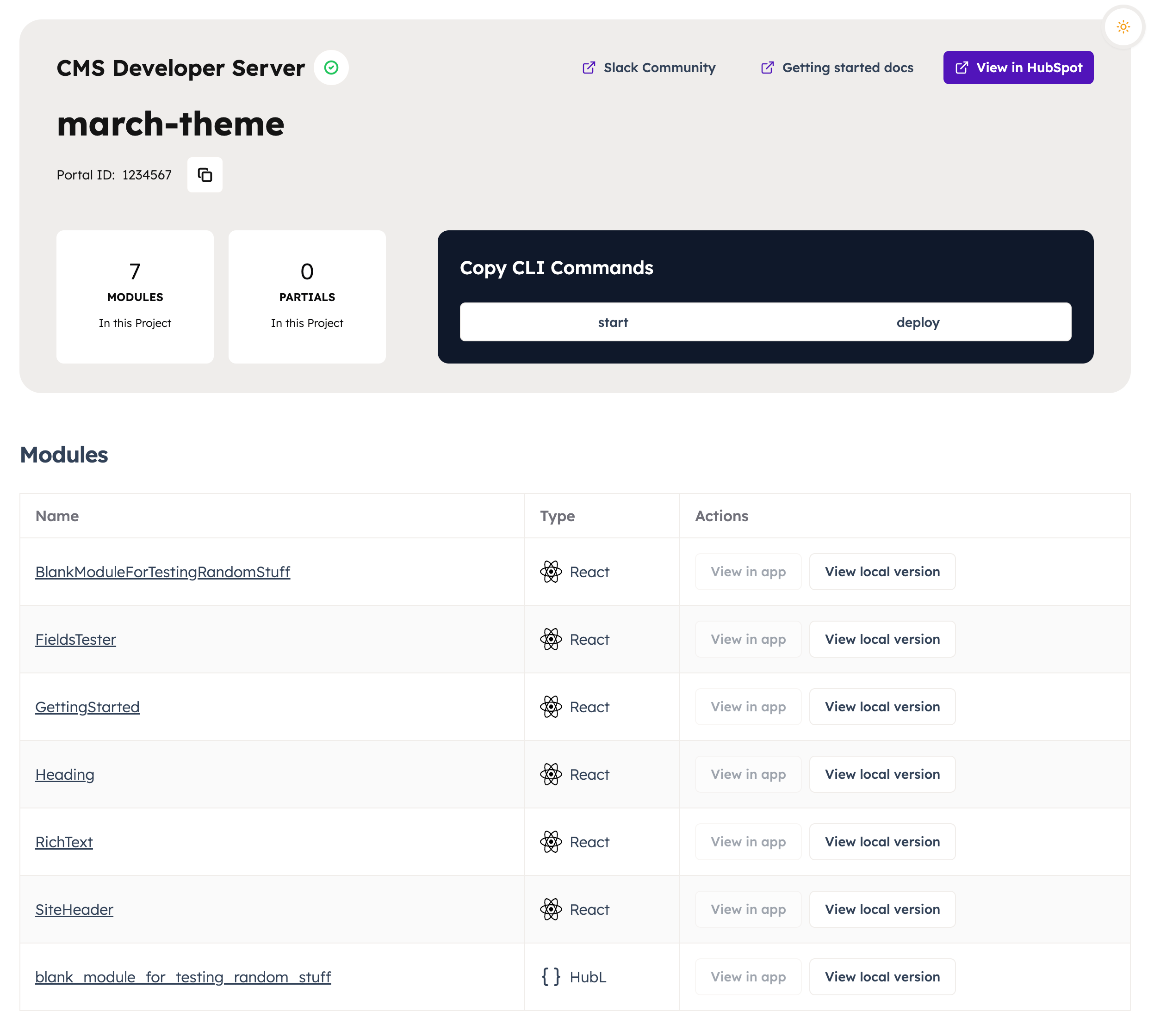
The main page at https://hslocal.net:3000/ will display a list of your theme’s templates and modules, all of which can be individually previewed by clicking the provided links.
Evaluate themes and templates for SEO and accessibility
Uses Google’s Lighthouse tools to score the quality of your themes and templates for their adherence to the following categories:
- Accessibility
- Web best practices
- Performance
- PWA
- SEO
The following types of templates are scored:
- Landing pages
- Website pages
- Blog posts
- Blog listing page
If any templates fail to generate a score because of Lighthouse errors, a list of these templates will be provided.
hs cms lighthouse-score --theme=path
Flags
| Flag | Description |
|---|
--theme-path | Path to a theme in the Design Manager. |
--verbose | - When this parameter is excluded, the returned score is an average of all the theme’s templates (default).
- When this parameter is included, the individual template scores are shown. You’ll also receive Lighthouse report links for each template.
|
--target | This can either be desktop or mobile to see respective scores. By default, the target is desktop. |
Retrieve an existing React theme
To fetch an existing React theme from your account, use the following command:
hs cms get-react-module <name> <dest>
Arguments
| Argument | Description |
|---|
name | The name of the module to download. |
dest | The destination on your local machine to download the module to. |
Generate theme field selectors for in-app highlighting
When creating a theme, use the following command to generate an editor-preview.json file which maps CSS selectors to theme fields. This enables content creators to see which theme elements will be impacted by updates to a field’s styling options.
After running the command, you’ll need to review and refine the editor-preview.json file to ensure that fields and selectors are mapped properly. While this command will make a rudimentary guess as to which fields affect which selectors, you’ll need to make corrections based on how your theme is built. For example, this command cannot detect when modules are overriding styling or when you’re using macros. Learn more about theme editor field highlighting.
hs theme generate-selectors <themePath>
Modes
The \--mode option allows you to determine if local changes are published when uploaded to HubSpot. This option can be used in each command or set as a default in your hubspot.config.yml file.
The two options for \--mode are \--mode=draft and \--mode=publish.
The following is the order of precedence for setting \--mode:
- Using
\--mode in a command will override all other settings.
- Setting a
defaultMode for each account in your hubspot.config.yml file, removes the need to use \--mode in each command. It will override the top-level setting.
- Setting a
defaultMode at the top-level in your hubspot.config.yml file, sets a default\--mode for all accounts. It will override the default behavior.
- The default behavior for
\--mode is publish.
Marketplace asset validation
The CLI provides a suite of automated tests you can perform on your assets to get them in-line with the marketplace requirements prior to submitting. Passing all automated tests does not mean you will for sure pass the review process, further review is conducted to ensure quality beyond what can be easily automated.
Validate theme
The theme validation command allows you to quickly run automated tests on your theme to identify problems that need to be fixed prior to submission to the asset marketplace. These will be returned in your CLI as a list of [error] and [success] messages separated into groups that represent types of assets within a theme.
Before you can validate a theme, you’ll first need to upload it to your account with hs upload. Then, run the following command to validate the uploaded theme.
hs cms theme marketplace-validate <path>
Arguments
| Argument | Description |
|---|
path | Root relative path to the theme folder in the design manager. |
Validate module
Similar to validating a theme, this command allows you to quickly run automated tests on a module to identify problems that need to be fixed prior to submission to the asset marketplace.
Before you can validate a module, you’ll first need to upload it to your account with hs upload. Then, run the following command to validate the uploaded module.
hs cms module marketplace-validate <src>
Arguments
| Argument | Description |
|---|
src | Root relative path to the module folder in the design manager. |
Create a webpack bundle
Create a new webpack bundle to support CMS serverless functions.
hs cms webpack create <dest>
Arguments
| Argument | Description |
|---|
dest | Destination directory for the new webpack bundle. |