HubSpot’s Live Chat widget allows you to chat with customers on your website. With the Chat Widget SDK, you can customize the behavior of the chat widget.
To chat with customers and leads on your website using HubSpot’s conversation inbox, you can set up a live chat widget. With the conversations SDK, you can provide a more tailored experience for visitors by customizing the behavior of the chat widget.At a high level, the conversations SDK enables you to do the following:
The API is housed in the window.HubSpotConversations object, which provides access to all available methods. The object is created by the HubSpot tracking code, but may not be available immediately on page load. To defer accessing the API until it’s initialized, you can use the window.hsConversationsOnReady helper.window.hsConversationsOnReady is an optional field you can define on the window object which enables you to specify code to be executed as soon as the widget becomes available. This field takes an array functions to be executed once the API has been initialized.
<script type="text/javascript"> function onConversationsAPIReady() { console.log(`HubSpot Conversations API: ${window.HubSpotConversations}`); } /* configure window.hsConversationsSettings if needed. */ window.hsConversationsSettings = {}; /* If external API methods are already available, use them. */ if (window.HubSpotConversations) { onConversationsAPIReady(); } else { /* Otherwise, callbacks can be added to the hsConversationsOnReady on the window object. These callbacks will be called once the external API has been initialized. */ window.hsConversationsOnReady = [onConversationsAPIReady]; }</script>
Whether the widget should implicitly load or wait until the widget.load method is called.
inlineEmbedSelector
String
""
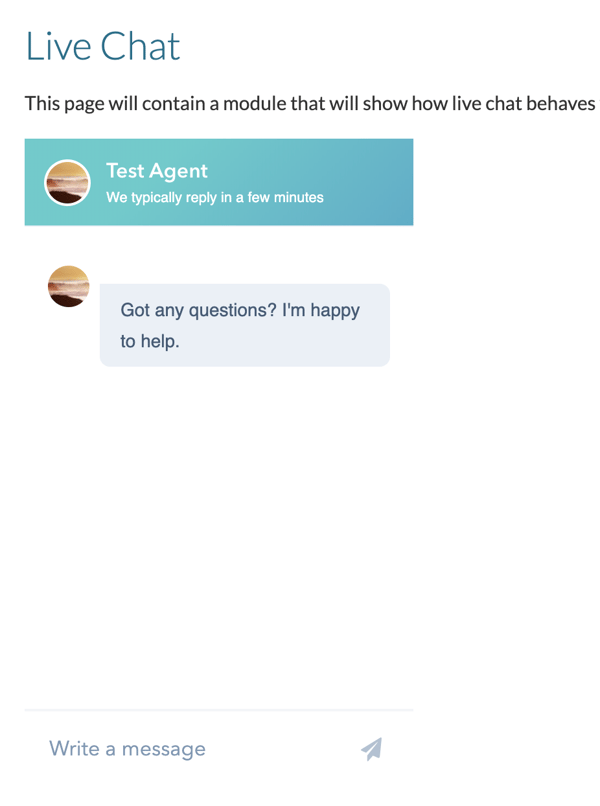
Specify a selector (#some-id) to embed the chat widget in a specific location on the page. Widget will be embedded inline within that DOM node and will remain open until it is removed with widget.remove. Learn more about styling embedded chat widgets.
enableWidgetCookieBanner
Enumeration
false
Control behavior of the cookie banner for all chat widgets on the page. Options include:
When the widget is embedded in a specific location using inlineEmbedSelector, several DOM elements are added and can be styled (e.g. height, width, border).For example, if you embed the chat widget using the #some-id selector, it would be loaded with the following containers and IDs:
The widget.load method handles the initial load on the page. This method is only necessary if you set loadImmediately to false. Otherwise, the widget will load itself automatically.This method is throttled to one call per second.
window.HubSpotConversations.widget.load();/* ... */// Force the widget to load in an open statewindow.HubSpotConversations.widget.load({ widgetOpen: true });
The widget.refresh method handles refreshing and re-rendering the widget’s information, given the current page URL. This method can be useful for chat widgets embedded in single-page applications when you need to refresh the widget on route changes. This method also enables you to specify different chat widgets on different page routes.If you call widget.refresh on a route where there is no chat widget, and the user isn’t engaged in a chat, the widget will be removed. It will not remove the widget when there is a currently active chat.This method is throttled to one call per second.
window.HubSpotConversations.widget.refresh();/* ... */// Force the widget to open to a specific chat flowwindow.HubSpotConversations.widget.refresh({ openToNewThread: true });
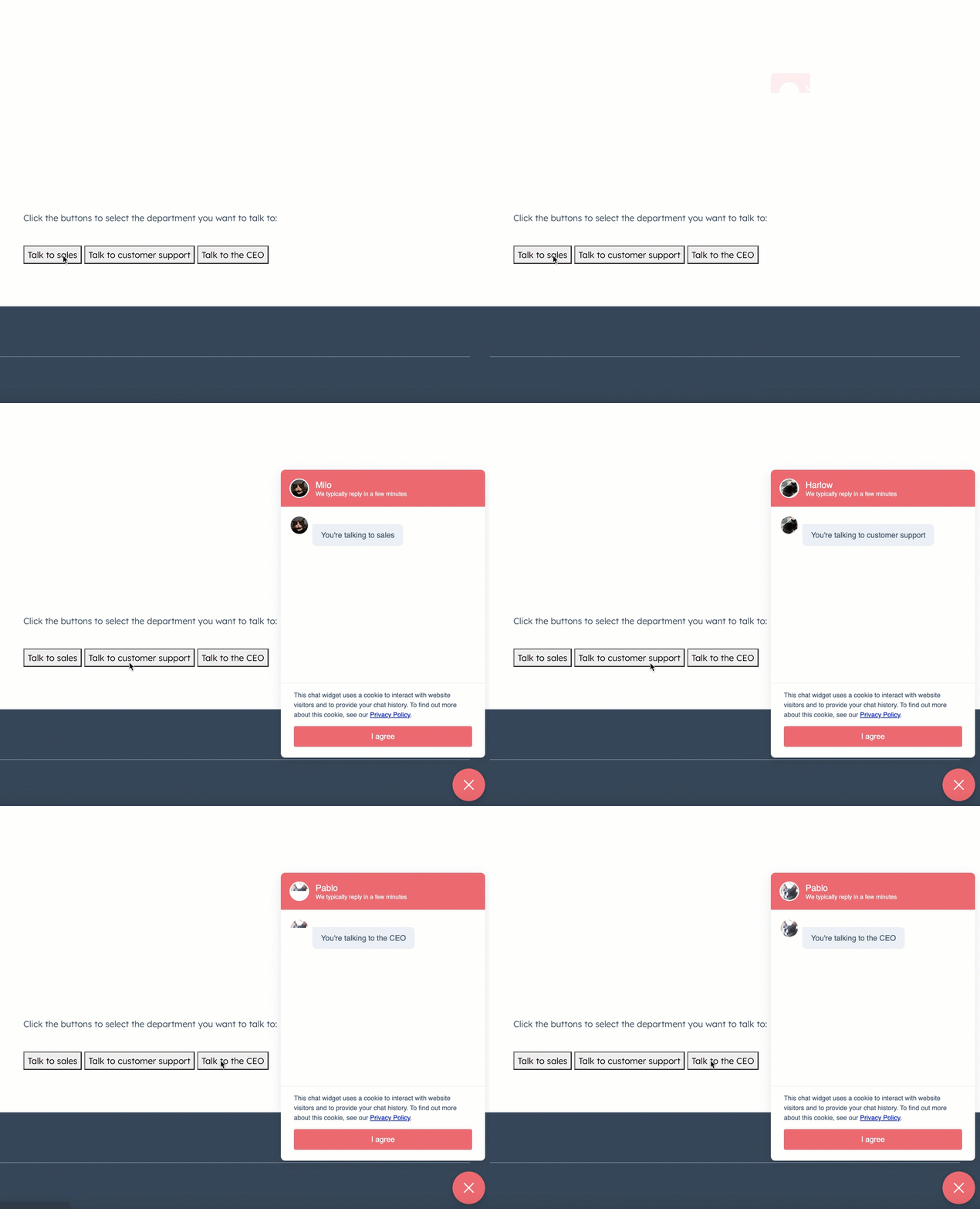
Using this method, you could create buttons and links to open specific chatflows on a page by adding query parameters to the page URL.For example, you could add the following code to your pages to generate the buttons:
<div class="chat-buttons"> <button onclick="window.history.pushState({}, 'talk_to_sales', '?sales_chat=true'); window.HubSpotConversations.widget.refresh({openToNewThread: true});" > Talk to sales </button> <button onclick="window.history.pushState({}, 'talk_to_customer_support', '?cs_chat=true'); window.HubSpotConversations.widget.refresh({openToNewThread: true});" > Talk to customer support </button> <button onclick="window.history.pushState({}, 'talk_to_the_ceo', '?ceo_chat=true'); window.HubSpotConversations.widget.refresh({openToNewThread: true});" > Talk to the CEO </button></div>
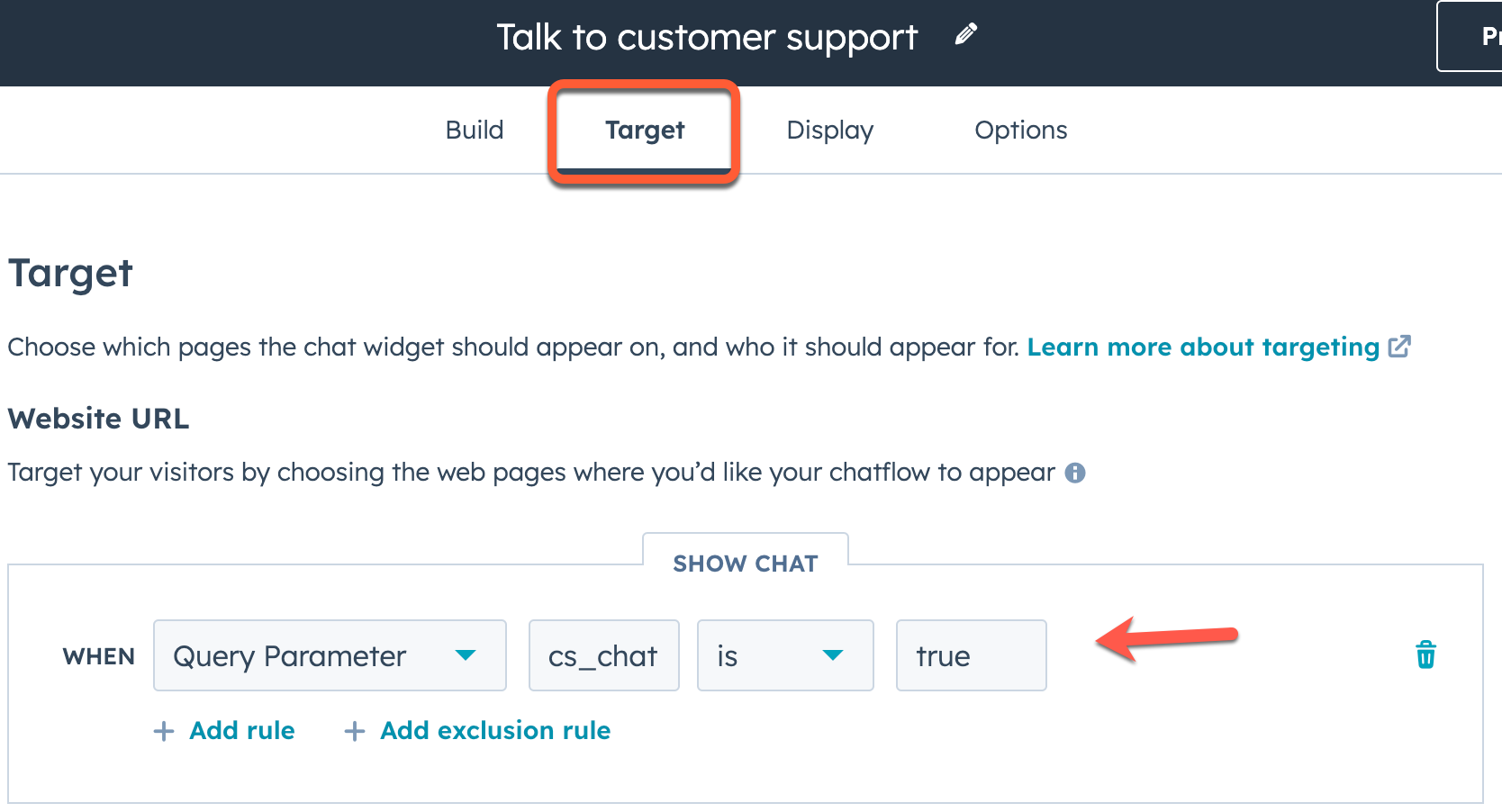
Then, in each chat’s target settings, you would set the chat to display when the query parameter matches the one you’ve set in your button code.
The widget.remove method removes the widget from the page. If the widget isn’t present on the page, this method does nothing. The widget will display again on page refresh or if widget.load is invoked.
The widget.openToKnowledgeBase method opens the chat widget directly to the knowledge base home view. The widget must be loaded and have a knowledge base enabled on the chatflow.If the widget is not already open, it will be opened automatically.
The widget.openToArticle method opens the chat widget to a specific knowledge base article. The widget must be loaded and have a knowledge base enabled on the chatflow.
The widget.openToCategory method opens the chat widget to a specific knowledge base category, displaying the articles within that category. The widget must be loaded and have a knowledge base enabled on the chatflow.
The clear method deletes cookies related to the chat widget and returns it to its default state on subsequent load.The chat widget creates several cookies to preserve its state across site visits and page refreshes. These cookies are scoped to the domain of the page hosting the widget, and are used to support the following features:
Referencing historical conversations.
Persisting the open state of the chat widget across page loads.
Persisting the open state of the welcome message across page loads.
The following cookies are cleared with this method:
Additionally, you can pass {resetWidget:true} to the clear() function to clear all chat related cookies, remove the widget from the page, and create a new instance of the chat widget.
The conversationStarted event triggers when a new conversation has been successfully started.
window.HubSpotConversations.on("conversationStarted", payload => { console.log(`Started conversation with id ${payload.conversation.conversationId}`);});
Field
Type
Description
payload.conversation.conversationId
Number
The thread ID of the conversation that was started. You can use this ID when making calls to the conversations API.
The conversationClosed event triggers when a new conversation has marked as closed from the conversations inbox.Site visitors minimizing or closing the chat widget will not trigger this event. For that event, use widgetClosed instead.
window.HubSpotConversations.on("conversationClosed", payload => { console.log(`Conversation with id ${payload.conversation.conversationId} has been closed!`);});
Field
Type
Description
payload.conversation.conversationId
Number
The thread ID of the conversation that was started. You can use this ID when making calls to the conversations API.
The userSelectedThread event triggers when creating a thread or selecting an existing thread.
window.HubSpotConversations.on("userSelectedThread", payload => { console.log(`User selected thread with ID ${payload.conversation.conversationId}!`);});
Field
Type
Description
payload.conversation.conversationId
Number
The thread ID of the conversation that was started. You can use this ID when making calls to the conversations API.
The userInteractedWithWidget event is triggered when the visitor interacts with the widget, such as clicking to open the widget or closing the initial welcome message.
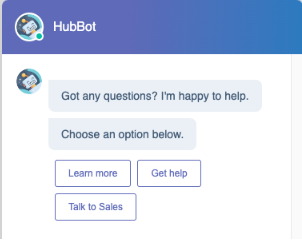
The quickReplyButtonClick event is triggered when the visitor clicks a quick reply in a bot conversation.
Field
Type
Description
value
Array
An array containing the text of the quick reply option that was clicked.
window.HubSpotConversations.on("quickReplyButtonClick", event => { console.log(`The text content of the clicked button is ${payload.value[0]}`);});
In the example screenshot above, the bot chatflow contains three quick reply options. If the user selects Learn more, the resulting event payload would be:
// Example event payload when a quick reply option is selected{ "name": "QUICK_REPLIES", "multiSelect": false, "value": ["Learn more"]}

 For example, you could add the following code to your pages to generate the buttons:
 In the example screenshot above, the bot chatflow contains three quick reply options. If the user selects Learn more, the resulting event payload would be: